
Gmail Filters: Automatically Label Emails
Create Gmail filters with sender, subject or other supported search conditions. Preview the matching conversations, include an exclusion case and start with a visible label before introducing riskier actions.
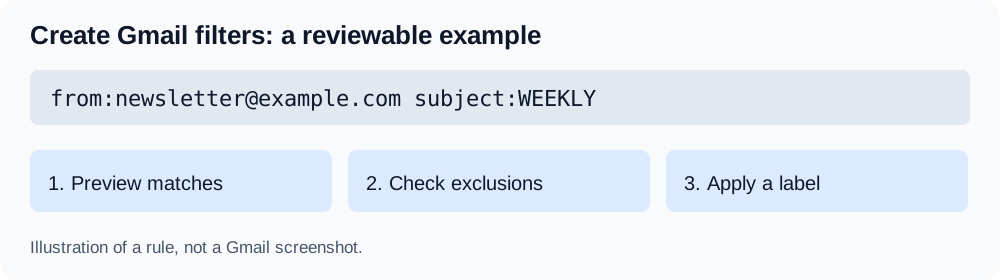
Illustration of a rule, not a Gmail screenshot.
Create a Gmail filter on your computer
- Open Gmail and expand the search options beside the search box.
- Enter a sender, subject or other condition.
- Search and inspect the results.
- Choose Create filter.
- Select an action, such as applying a label.
- Confirm the filter.
These steps follow Google’s filter instructions. Labeling is a useful starting action: you can inspect the matches before deciding whether to remove them from the inbox.
Useful Gmail filter examples
Replace these example addresses and references with your own. Search before saving a rule.
| Goal | Example search | Starting action |
|---|---|---|
| Collect one newsletter | from:[email protected] | Apply a Newsletter label |
| Group attachments from a billing sender | from:[email protected] has:attachment | Apply a Receipts label |
| Track a consistent project reference | subject:PROJECT-42 | Apply a Project-42 label |
A billing address plus an attachment is a pattern, not proof that a message is an invoice. A project reference helps only when people actually use it. Check exceptions instead of assuming that a rule understands the content.
Google’s search-operator reference explains combining conditions. Keep your first query narrow and broaden it after checking the results.
Automatically label emails or move them out of the inbox?
A label helps you retrieve a message. Whether you still need to read or answer it is a separate decision. Gmail allows multiple labels on a message, so a client label and a billing label need not be mutually exclusive.
This differs from a conventional one-folder-per-message arrangement. Inspect your results before treating Gmail as an ordinary IMAP folder tree. See Google’s label guide.
Choose between Gmail rules and AI sorting
| Requirement | Starting point |
|---|---|
| One known newsletter sender | A native sender filter |
| A consistent subject reference | A native subject filter |
| Invoices written differently by different senders | Test a content-based category prompt |
| Several projects using the same sender address | Evaluate each message individually |
A fixed rule suits a precise condition. Prompt-based sorting is useful to test when the category depends on meaning and you can describe that meaning clearly. Neither approach guarantees correct assignments.
Test prompt-based Gmail sorting
AI Email Filter evaluates category prompts in a connected mailbox. An example is “purchase invoices and payment reminders, excluding promotional offers.” Treat this as an instruction to test, not a proven rule for every invoice.
- Connect Gmail with credentials supported by your account.
- Create a category, describe what belongs there and choose its intended action.
- Classify a small selection in the review queue without applying moves.
- Inspect mistakes, refine the prompt and apply only the actions you approve.
For mixed-purpose senders, review existing saved assignments and message-level results separately. Sender Smart Categories can otherwise reuse eligible saved categories for matching subject patterns; a changed subject can trigger another classification.
The application reads email data and classification can send a sender, subject and text preview to the configured model. Bring Your Own LLM explains the model settings and hosting requirements.
Gmail filter questions
Why did a reply miss my filter?
A reply must satisfy the filter’s conditions too. Compare its sender and subject with the query rather than assuming a whole conversation follows one rule.
Where can I change an existing filter?
In Gmail settings, open See all settings → Filters and Blocked Addresses and select the filter to edit or remove.
Do native Gmail filters need an app password?
No. You create them inside Gmail. An app password concerns connecting a compatible account to an external IMAP application; see the connection guide.
Does connecting AI Email Filter replace my Gmail rules?
Connecting the mailbox does not require deleting native rules. Decide which system handles each category and review their combined effects before automating moves. For several clients, see sorting by client and project.
Ready to put your inbox on autopilot?
Get Started Free