
Thunderbird Filters: Create Rules and Fix Common Problems
Create Thunderbird filters to sort messages by conditions you can verify. Start with a known sender or a clear project reference and test a small selection before moving an entire inbox.
Create a Thunderbird message filter
- Open Tools → Message Filters and select the account.
- Choose New and name the rule.
- Select Getting New Mail for incoming messages and Manually Run for the test.
- Add a condition, such as From → is → [email protected].
- Start with a visible action, then save.
- Select a test folder and use Run Now.
See Mozilla’s instructions. Menu wording can vary by version and language.
When the test matches your intended messages, replace the starting action with a move action and choose the destination folder. Save the rule and check another small sample before leaving it enabled for incoming mail.
Match all conditions or any condition?
Suppose your intended newsletter uses one sender and includes WEEKLY in its subject. With all conditions, both must match. With any condition, that sender alone also matches a billing notice. Choose the combination that expresses your actual decision; more conditions do not automatically make a rule better.
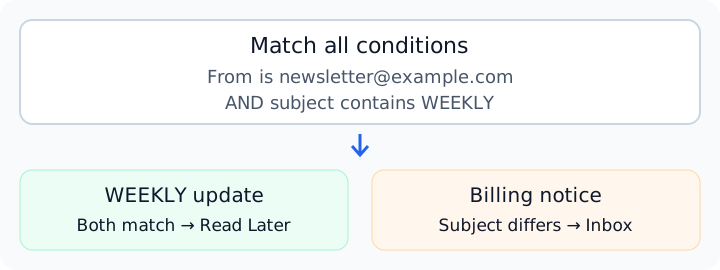
This is an illustrative condition example, not a screenshot or a test result. Replace its address, subject reference and folder with your own.
Start with one observable condition
These are example rules, not settings we have tested on your mailbox. Replace the addresses and references with your own.
| Goal | Example condition | First test |
|---|---|---|
| Collect a known newsletter | Sender is [email protected] | Mark a matching message |
| Find a project reference | Subject contains PROJECT-42 | Inspect matching subjects |
| Group vendor notices | Sender is [email protected] | Check whether billing and marketing share the address |
The third case exposes a common problem: one sender may deliver both invoices and offers. A sender rule cannot decide which you want unless another condition distinguishes them. Keep important billing messages visible while you refine it.
Thunderbird filters not working?
Incoming filters apply to the inbox; a manual run can target another folder. Check execution order if an earlier rule moves the message. The linked Mozilla guide explains this scope.
| Symptom | What to inspect |
|---|---|
| No message changes | Selected account, enabled rule and trigger |
| Only some intended messages match | Actual sender and subject, plus all/any conditions |
| A match occurs but a move fails | Existing destination folder and write access |
| A message appears in an unexpected folder | Other desktop or server rules acting on the same message |
Work through one example instead of rewriting every rule:
- Pick a message you expected to match.
- Compare its actual sender and subject with your condition.
- Try a visible, reversible action such as marking it.
- Inspect the result, then introduce the intended folder move.
If the rule matches but the move fails, check that the destination exists and the account can write to it. If several tools organize the mailbox, pause overlapping rules during the test so you can attribute the result.
Message filters or the Quick Filter Toolbar?
The Quick Filter Toolbar narrows the displayed message list. A saved message filter defines conditions and actions. If your goal is to move future mail, changing the list view is a different operation from configuring that rule.
Desktop rules, server rules or AI sorting?
| Requirement | Useful starting point |
|---|---|
| Stable sender or subject, processed in Thunderbird | A Thunderbird filter |
| Provider-side processing while your computer is closed | Your provider’s rules or a supported server-side setup |
| A category expressed by meaning rather than one pattern | Test a prompt-based sorter connected to IMAP |
AI Email Filter connects to a reachable IMAP mailbox with supported credentials. You can continue reading mail in Thunderbird; changes to server folders synchronize through IMAP. Local folders are a separate case and should not be treated as remote folders the service can access.
Test AI sorting alongside Thunderbird
Use a narrow example category: “purchase invoices or payment reminders from Vendor Alpha, excluding promotional offers.” Replace the vendor with one you can identify in the message. The model does not automatically know your customers or purchasing history.
- Connect your IMAP mailbox.
- Define a category and choose an existing destination folder.
- Classify a small sample in the review queue before applying moves.
- Check errors and remove conflicting desktop or server rules.
For mixed-purpose senders, review existing saved assignments and message-level results separately. Sender Smart Categories may reuse eligible categories for matching subject patterns; a different subject can trigger another classification.
Classification can send the sender, subject and text preview to the configured model endpoint. See Bring Your Own LLM before processing sensitive messages. Keeping processing within your infrastructure requires hosting both the application and the model there.
Next steps
For folder design, see how to organize emails. If your rules depend on clients and projects, use the client email workflow. AI Email Filter includes 200 free classifications; pricing explains the paid plans.
Common questions about Thunderbird filters
Do I need AI Email Filter to create a Thunderbird rule?
No. The native steps above work in Thunderbird. Consider an additional sorter only when your existing rules do not express the decision you need and you can evaluate its results.
Can the hosted service process Thunderbird’s local folders?
A remote IMAP connection accesses server folders, not an arbitrary folder on your computer. Check where the messages live before choosing an automation tool. Do not move a local archive merely to satisfy a sorting guide.
Should every message from a client go into one project?
Only if that is your actual workflow. One client may discuss invoices and several projects through the same address. Add an observable project reference or review the message individually instead of treating the sender as proof.
Ready to put your inbox on autopilot?
Get Started Free