

AI email tools with smart folders and filters help organize incoming mail, but they do different jobs. Some group messages into views, some learn which senders matter, and others use descriptions you write to classify messages and apply actions.
Quick choice: consider Clean Email for grouped cleanup and criteria-based rules, SaneBox for priority folders in your existing mailbox, Shortwave for AI filters and focused views in its email interface, or AI Email Filter for prompt-based categories with configured folder actions. The right choice depends on where you want to work and what should happen to the original email.
Below is a comparison based on vendor documentation, followed by an invoice-sorting workflow you can adapt. This is a feature comparison, not a hands-on accuracy benchmark.
Compare the four tools · Follow the invoice workflow · Check the common questions
Smart folders, labels and filters: what is the difference?
A smart folder can be a saved view rather than a physical destination. A filter defines which messages match and, when configured, what happens next. AI adds classification based on meaning; it does not make every folder or rule intelligent.
| Behavior | What it does | What to verify |
|---|---|---|
| Filtered view | Displays matching messages together | Does the original message stay where it is? |
| Folder move | Files a message in a mailbox destination | Can you find it in your usual email client? |
| Label assignment | Adds a label that may coexist with others | Does applying it also remove the message from the inbox? |
| AI classification | Selects a category using message fields and instructions | Which fields does the model receive, and how are exceptions handled? |
For a known sender or a stable subject pattern, a native rule may be sufficient. See our Gmail filter guide. AI becomes useful to evaluate when one address sends both invoices and promotions and the wording varies.
If sender-based filing is your main task, start with sorting emails into folders by sender: rules or GenAI. It includes a small test set for invoices, offers and account alerts from one address.
Compare four email tools for folders and filters
Documentation reviewed on October 15, 2026. Features and availability can change; check the linked documentation before choosing a plan.
| Tool | Organization approach | Filters and actions | A useful fit when… |
|---|---|---|---|
 Clean Email | Smart Folders are predefined filtered groups across mailbox folders or labels | Auto Clean applies criteria-based actions such as move, label, archive and mark read | You want to clean groups of mail and automate explicit criteria |
 SaneBox | Folders such as SaneLater and SaneNews separate lower-priority mail and newsletters | Moving example messages into folders trains future sorting | You want priority sorting while continuing to use your existing mailbox |
 Shortwave | Inbox Splits create focused views; labels organize threads | AI filters accept natural-language descriptions and can label, archive, star and take other actions | You want AI filtering inside Shortwave’s email interface |
 AI Email Filter | Your category descriptions map to configured actions and target folders | Preview classifications, review selected results, then apply actions such as move; optional read status, flags and forwarding | You want to describe categories and file mail while keeping your usual email client |
Clean Email: grouped cleanup and Auto Clean
Clean Email describes Smart Folders as predefined filters, not newly created mailbox folders. Auto Clean is the separate automation layer. Its documented criteria include sender details, subject search, age and read status. Its search documentation says message bodies are not downloaded, so do not assume its filters interpret the body of an invoice.
Sources: Smart Folders, Auto Clean rules, search scope.
SaneBox: folders for priority and later reading
SaneBox works with an existing email account. SaneLater collects less-important mail, while SaneNews groups newsletters and mailing lists. Its documentation describes training by moving example messages into the relevant folder. This is a different workflow from writing a detailed prompt for each category.
Source: SaneBox folder features and training.
Shortwave: AI filters connected to Inbox Splits
Shortwave supports natural-language AI filters and actions including labels, archiving and stars. Splits are views of inbox threads, not labels themselves; archived threads no longer appear in a Split. Its documentation also describes reapplying filters to sample messages. Check the effects of that operation rather than assuming it is a non-mutating preview.
Source: Shortwave customization and AI filters.
AI Email Filter: category descriptions and mailbox actions
AI Email Filter connects to Gmail and supported IMAP mailboxes. You describe the category, configure a destination and action, and inspect a dry preview before applying reviewed results. The classifier chooses one category or none; it does not invent your filing system. Eligible saved sender categories can also be reused, so sender-category behavior matters when one sender sends several types of mail.
A concrete workflow: file invoices without filing promotions
Suppose Vendor Alpha sends both purchase invoices and offers from the same address. You want invoices in Finance, while promotions stay out of that category. All names and messages below are fictional. The table defines expected results for your review; it is not a claim that a model has passed these tests.
Step 1: Connect a mailbox and start with one category
Follow Connect an IMAP mailbox using supported credentials. Keep scheduled processing off while setting up the example. Check other active categories too: excluding a message from this category does not prevent a different category from matching it.
Step 2: Describe the category and choose its action
Create a category called Billing review and use this description:
Purchase invoices and payment reminders from Vendor Alpha. Exclude newsletters and promotional offers. Leave messages without a clear vendor reference for review.
Select Move to folder and choose Finance as the target. Leave optional mark-as-read, flag and forwarding actions off for this first run so that the change is easy to inspect.
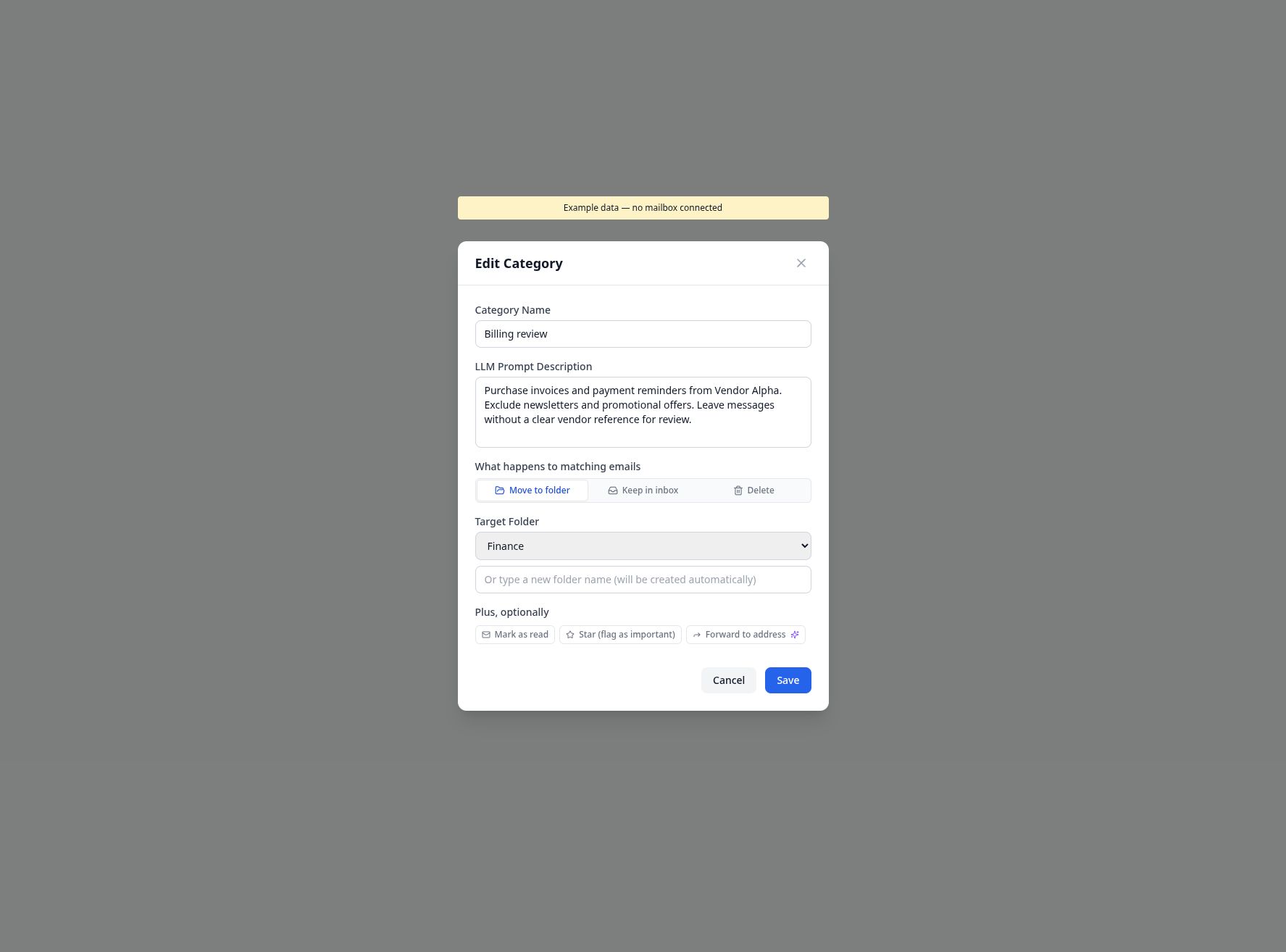
Actual application component rendered with fictional data. No mailbox is connected and no classification was performed in this screenshot.
The prompt describes membership; the action fields perform the move. Writing “leave for review” in the description does not create a separate review queue or override another category’s action.
Step 3: Prepare positive, negative and ambiguous examples
Use messages you are permitted to process. Include varied wording and messages from the same sender with different purposes.
| Example message | Expected result for Billing review | What you are testing |
|---|---|---|
| “Vendor Alpha invoice INV-104 for your completed order” | Match; propose moving to Finance | A straightforward invoice |
| “Reminder: Vendor Alpha invoice INV-104 is overdue” | Match; propose moving to Finance | A payment reminder with different wording |
| “Vendor Alpha sale: save 20% on your next order” | Do not match | A promotion from the same sender |
| “Our newsletter: a new invoicing feature” | Do not match | The word “invoice” without an actual bill |
| “Payment details” with no clear vendor reference | Leave unapproved for inspection | Missing context |
For mixed-purpose senders, inspect saved sender assignments as well as the prompt. Reuse depends on eligibility and subject-pattern conditions, with permissive fallbacks for missing patterns or empty subjects. A cached result is not evidence that the model reread this message.
Step 4: Run a dry preview and inspect each result
Select a small sample in the mailbox review flow and classify it before applying actions. Compare each proposed category and destination against the original message and your expected result. Check missed invoices as carefully as incorrect matches.
Unapprove incorrect or uncertain results before applying anything. If the preview disagrees with the table, adjust the category boundaries or review sender assignments, then test again. Classification can use a text preview that omits relevant details; an invoice mentioned only in an attachment may need manual inspection.
Step 5: Apply a reviewed batch and verify the mailbox
Apply only the approved results. Open Finance in your usual email client and confirm the intended messages arrived. Check that excluded messages were not moved by another category, and inspect action history for errors.
Supported recorded folder moves can be undone while the message remains accessible. Delete reversal is unsupported in History, and a forwarded copy cannot be recalled. If you later enable forwarding with a summary, the original email is attached too. Review multi-action rules before combining effects.
Step 6: Enable automation after the sample behaves as intended
Expand the sample to include new senders, unfamiliar subjects and exceptions before enabling scheduled processing. Recheck results after changing prompts, sender assignments or models. A successful sample is a useful starting point, not a guarantee for future messages.
Try the workflow with 200 free classifications. Start with the Billing review category, compare proposed moves and apply only results you have checked. For more category ideas, see 10 email sorting prompts with exclusions.
Questions to answer before choosing a tool
Do I need an AI filter or an ordinary rule?
Use a native rule when the condition is exact and stable, such as one address or a fixed subject reference. Evaluate AI when the decision depends on varied message wording. Test both matches and exclusions with either approach.
Will a smart folder move my emails?
Not necessarily. Clean Email’s Smart Folders and Shortwave’s Splits are views. A configured move action in AI Email Filter changes the message’s mailbox location. Verify the action separately from the category or view name.
Can I keep using my current email client?
SaneBox sorts within your existing account. AI Email Filter works with supported reachable IMAP mailboxes so you can read filed messages in your usual client. Shortwave provides its own email interface. Check provider compatibility and authentication before choosing.
Where does AI Email Filter process message content?
Classification can send sender, subject and a text preview to the configured model endpoint. A custom OpenAI-compatible endpoint can have a default-provider fallback; it does not automatically make the hosted application local. Review Bring Your Own LLM before choosing where to process mail.